Steps Slide in PowerPoint
Many business presentations require explaining how something happens, how a project progresses, or how a team should execute a process. Whether you're presenting a customer journey, implementation plan, operational workflow, or strategic initiative, audiences need a clear visual representation of the sequence of activities involved.
A Steps Slide is one of the most widely used PowerPoint layouts because it transforms complex processes into a structured series of easy-to-follow stages. With the Slidedoer PowerPoint Add-in, you can instantly create professional Steps Slides that help executives, stakeholders, clients, and team members understand workflows, project phases, and business processes quickly and effectively.
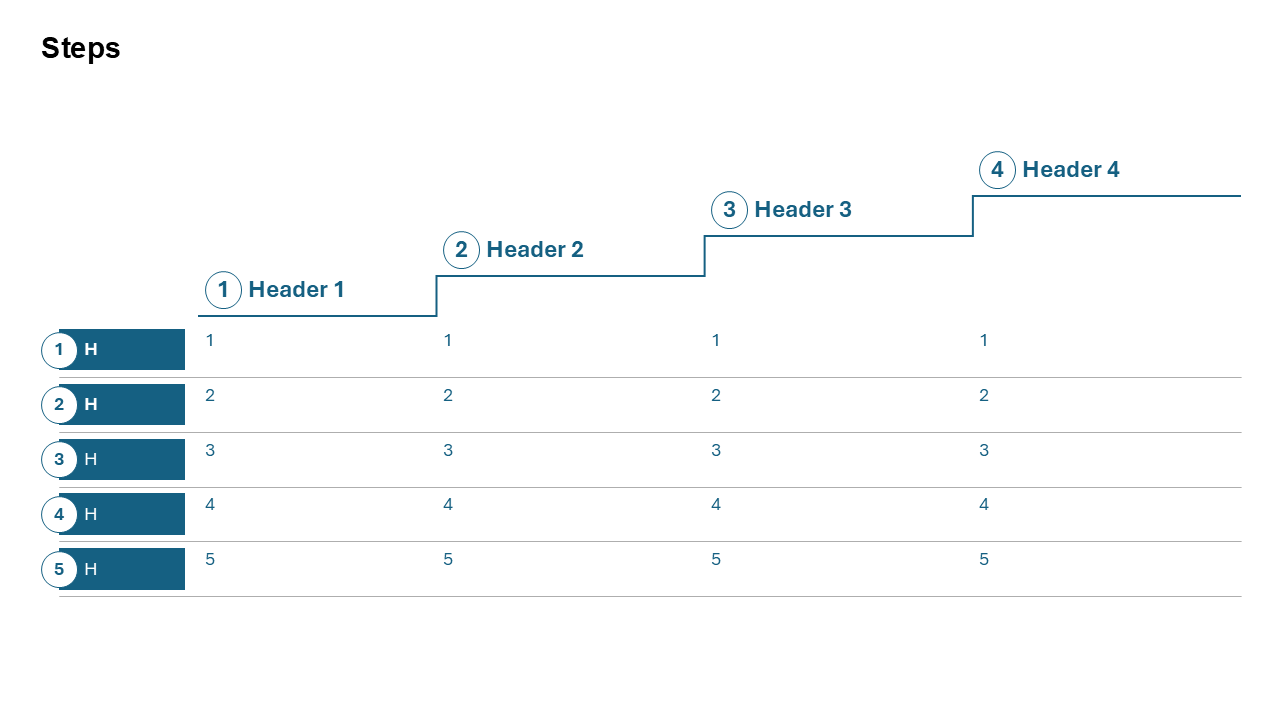
What is a Steps Slide?
A Steps Slide is a visual framework used to present a sequence of activities, stages, actions, or milestones that occur in a specific order. Each step typically builds upon the previous one, helping audiences understand progression, execution, and outcomes.
- Business process visualization.
- Project implementation planning.
- Customer journey mapping.
- Operational workflows.
- Training and instructional presentations.
Why Use It?
Simplifies Complex Processes
Breaks complicated workflows into manageable and understandable stages.
Improves Communication
Helps audiences quickly understand how activities progress from start to finish.
Supports Better Execution
Provides teams with a clear roadmap for completing tasks and achieving objectives.
Enhances Presentation Clarity
Organizes information visually instead of relying on lengthy text explanations.
Best Use Cases
- Project Management: Planning, execution, monitoring, and closure phases.
- Business Processes: Operational workflows and standard operating procedures.
- Customer Journeys: Awareness, consideration, purchase, and retention stages.
- Digital Transformation: Assessment, planning, implementation, adoption, and optimization.
- Training Programs: Step-by-step instructional content and learning frameworks.
When to Avoid It
Avoid using a Steps Slide when activities occur simultaneously, involve multiple decision branches, or require showing hierarchical relationships. In such situations, process maps, decision trees, organizational charts, or matrix diagrams may be more suitable.
Tips for Better Steps Slides
- Limit the Number of Steps: Five to seven steps usually provide optimal readability.
- Use Action-Oriented Labels: Start each step with a clear action or outcome.
- Maintain Consistency: Use similar wording and formatting across all steps.
- Include Supporting Icons: Visual elements improve comprehension and retention.
- Focus on Key Activities: Avoid overwhelming audiences with excessive detail.
Examples of Steps Slides
Project Implementation Process
Initiation → Planning → Development → Testing → Deployment → Support
Customer Acquisition Journey
Awareness → Interest → Evaluation → Purchase → Retention
Digital Transformation Program
Assessment → Strategy → Technology Deployment → Training → Optimization
Recruitment Process
Application → Screening → Interview → Assessment → Offer → Onboarding
Advantages of Steps Slides
- Easy to Understand: Clearly communicates sequential activities.
- Supports Process Standardization: Helps document repeatable workflows.
- Improves Team Alignment: Ensures everyone understands execution stages.
- Executive-Friendly: Simplifies operational and strategic discussions.
- Highly Versatile: Applicable across every business function and industry.
Common Types of Steps Slides
- Linear Steps: Activities that follow a simple sequential flow.
- Numbered Steps: Clearly defined phases labeled 1, 2, 3, 4, and so on.
- Chevron Process Steps: Arrow-shaped stages showing progression.
- Horizontal Steps: Left-to-right process visualization.
- Vertical Steps: Top-to-bottom workflows and procedures.
- Milestone Steps: Key checkpoints within larger projects or programs.
Steps Slide vs Process Flow Slide
Although they are often used interchangeably, Steps Slides and Process Flow Slides serve different presentation purposes.
- Steps Slide: Focuses on a simple sequence of activities.
- Process Flow Slide: Can include branches, loops, decisions, and alternate paths.
- Steps Slide: Best for executive summaries and high-level communication.
- Process Flow Slide: Best for operational and technical process documentation.
- Steps Slide: Prioritizes simplicity and visual clarity.
- Process Flow Slide: Prioritizes process accuracy and completeness.
How to Create Effective Steps Slides
The most successful Steps Slides focus on clarity, simplicity, and logical progression. Start by identifying the major phases of the process and eliminate unnecessary detail. Each step should represent a meaningful milestone or action that contributes to the overall objective.
Use concise labels, consistent icons, and visual connectors such as arrows or chevrons to guide audiences through the sequence. Avoid overcrowding slides with excessive text. Instead, provide supporting explanations verbally or in speaker notes when presenting.
For executive audiences, emphasize outcomes and milestones. For operational teams, include ownership, deliverables, and key success criteria where appropriate.
Conclusion
The Steps Slide is one of the most versatile and widely used PowerPoint presentation layouts. Whether you're explaining a business process, project implementation plan, customer journey, operational workflow, or transformation initiative, a well-designed Steps Slide helps audiences understand progression, responsibilities, and outcomes quickly and effectively.
Related Slides
Circular Flow | | Linear Process Flow | | Filter | | Fish Bone | | Funnel | | Market Size | | Pillar | | Pyramid | | Roadmap | | Steps | | Chart | |
Create Professional Steps Slides in Seconds
Use Slidedoer PowerPoint Add-in to instantly build process steps, workflow diagrams, project phases, implementation plans, customer journeys, and 60+ business presentation layouts.
Try Slidedoer